The timestamp list |
  
|
The timestamp list |
|
You can display your timestamps in the project manager. Click on the menu button "Display areas" and choose "Timestamps show/hide".
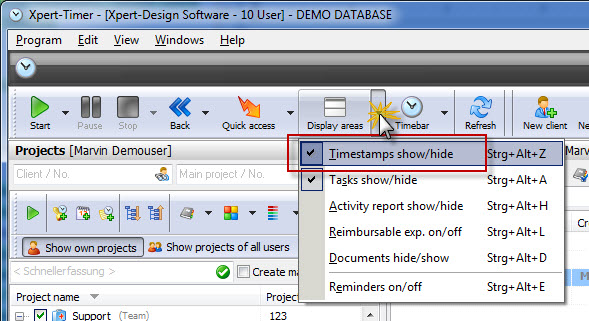
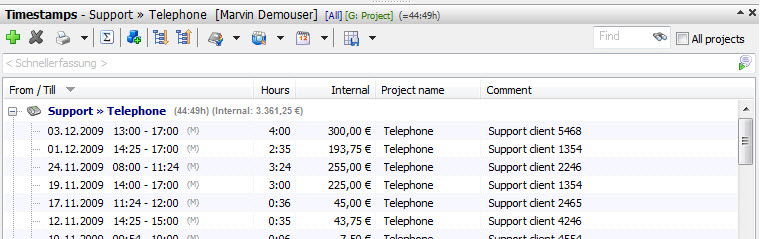
If activated, you'll see your timestamp list in your project manager.
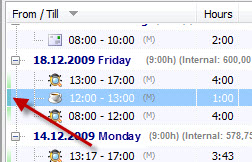
If you group your timestamps by date, you can see a small green or red bar on the left side of your timestamps. This helps you identify gaps in your timestamps. A green bar states, that the timestamps are all in order, correctly entered. No bar means there are gaps and a red bar indicates timestamps the overlap each other.
You can edit the comment to your timestamp directly in your project manager. Focus with the mouse on the comment field and hit F2 to edit the text.
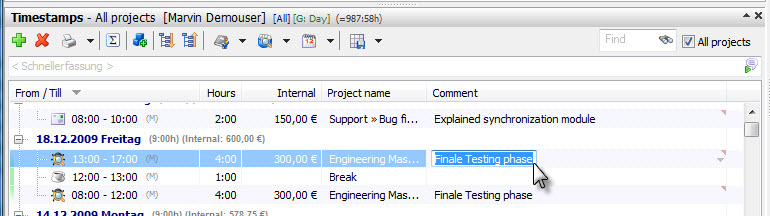
Use Ctrl+C to copy a comment and use Ctrl+V to paste it into another comment field.
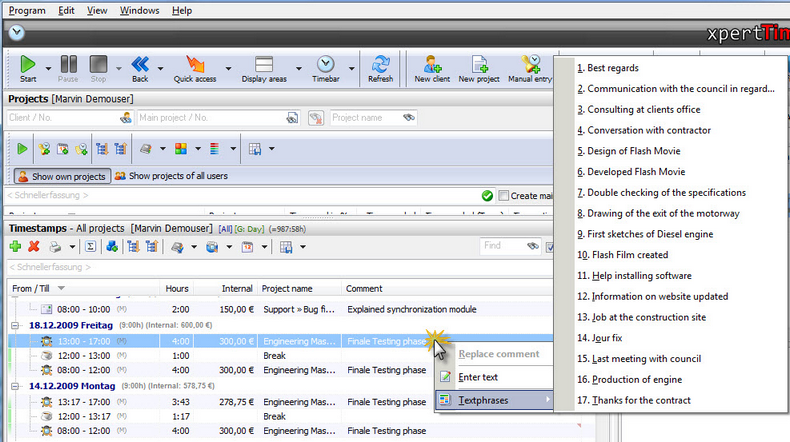
If you rightclick in the comment field you can also add textphrases:
Per Rechtsklick auf den Kommentarbereich können Sie auch Textbausteine einfügen:
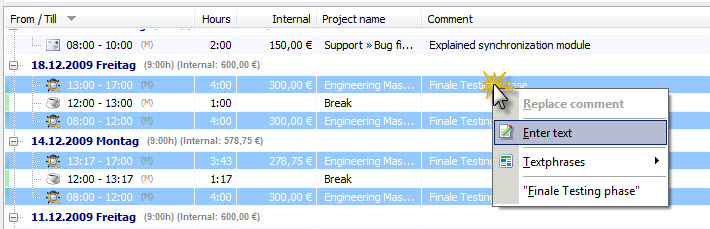
If you want to enter the same text in multiple timestamp fields, mark them with the mouse, and enter the text by right clicking in one comment field.
If you right click on a timestamp you can see following menu:
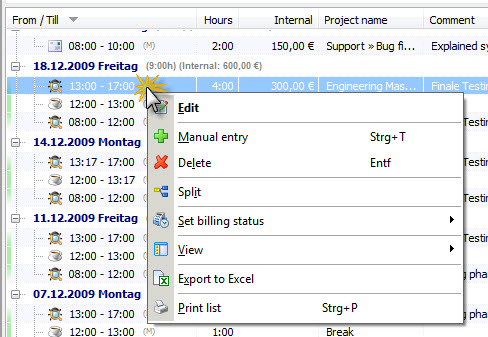
Here you can edit your timestamps. You can also edit by double clicking the timestamp.
If you have multiple timestamps on the same project, you can merge them to one timestamp. See details in the chapter "Merge timestamps".
You can split a timestamp if you need to. Just choose "Split" in the menu and Xpert-Timer will ask you at what time exactly you want to split the timestamp.
In this menu you can also set the billing status of the timerstamp. You might want to set it to "Not billable" to mark a timestamp. This way you can exclude timestamp for the invoice of your client. This might have been "free support".
|
Hint |
|---|---|
You can add comments to a running project by hitting Win+F4 (or the shortcut combination you set in the configuration). You can also right click on the running project time and choose "Edit active timestamp". |
|
|
Intelligent quick entry |
|---|---|
Go ahead and also read the chapter for the intelligent quick entry in your timestamp list. |
|
You can print any view of your timestamp list. The way you see it in your project manager, the way it gets printed. You can show/hide columns by right clicking on the column header:
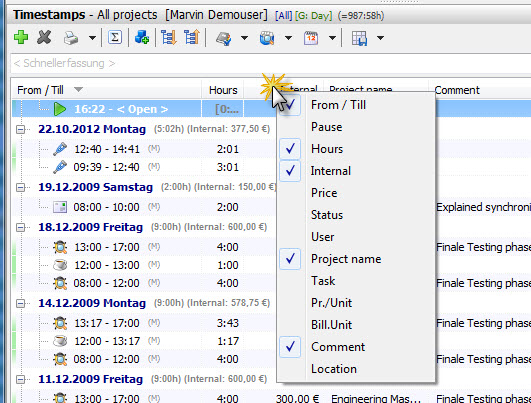
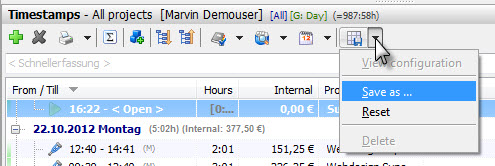
Use the menu button "Load/Save view" to save your filters, columns and grouping of your timestamp list. This way you can create different reports easily.